
Using Google Tag Gateway with GetTerms
If you're using or planning to use Google Tag Gateway to connect your Google Tag to Google Ads, Google Analytics, Campaign Manager 360 or Google Tag Manager, read this guide first! It covers what Google Tag Gateway does, how to tell whether it's running on your site, and how to spot issues like late consent (and how to fix them).
Key Takeaway
Google Tag Gateway is a new way to configure your Google Tag that allows you to retain more data without breaching regulatory requirements or the consumers rights.
The most common problem
When Google Tag Gateway is enabled, your Google Tags may run before your consent platform can set consent mode defaults (late consent). If this happens, Google will behave as if consent has been denied and your data may flatline!
Reordering the scripts in your <head> will not fix this issue, because the problem starts before your page reaches the browser.
What is Google Tag Gateway?
Google Tag Gateway (GTG) lets you serve your Google tag or Google Tag Manager container from your own domain instead of a Google domain such as googletagmanager.com . Your tags load from your domain, measurement events are sent to your domain, and your domain forwards them to Google. Google's stated benefits are enhanced data privacy and improved signal measurement recovery, but as a business, there's a side effect you'll be more interested in: Script blocking bypassing.
The secret benefit to Google Tag Gateway - Script blocking bypassing.
Extensions like Brave, DuckDuckGo and uBlock Origin all work by blocking external requests to google-analytics.com/g/collect, /gtag/, googletagmanager.com etc, but often these are overstepping, blocking tracking even when the user accepts cookies. Statistics cookies may not even require consent in the near future.
By routing your Google Tag's requests through your root domain, you bypass these blockers and retain data from tracking that the user has consented to. That said, it's worth noting that some requests might still be sent directly to Google Analytics (e.g., region1.analytics.google.com).
How to setup Google Tag Gateway
There are three ways to deploy it, and the difference between them decides everything that follows.
- A one-click integration with a CDN partner such as Cloudflare, Fastly, Akamai, or Amazon CloudFront, with no manual script changes.
- A Google Cloud Load Balancer setup, configured through your Google Cloud project.
- A manual setup, where you decide where the tag is imported.
Google Tag Gateway is not anonymization. Serving your tags first-party doesn't stop personal data reaching Google. IP addresses and other identifying details are still transmitted when GTG is enabled, so the same consent obligations apply to the same data as before.
How does Google Tag Gateway affect your cookie banner?
It can change which script runs first, and your banner needs to be first.
GetTerms CMP sends Google's Consent Mode Default command on every page load, which sets the starting consent state for the visitor's region before any tag runs. In an opt-in region that default is denied for all consent types except security_storage . In an opt-out region the default is granted for all consent types. Your CMP then updates the consent state with the visitors consent preferences when they interact with your cookie banner.
Why this matters
With a one-click CDN setup, the Google tag is injected into the page at the CDN, before the HTML ever reaches the browser. It can load ahead of everything else on your page, including your banner and its defaults. There's no position in your <head> earlier than an injection happening at the CDN, which is why moving scripts around does nothing.
When your Google Tag is configured for consent, Google expects a consent signal. If none are received - e.g. if your Google Tag runs before you consent banner can send one - Google assumes no consent has been given and blocks tracking.
A manual setup doesn't have this problem by default, because you keep control of where the tag is imported. If you deploy a GTM container through the gateway, the outcome depends on how the container is configured.
How do you know if Google Tag Gateway is active on your site?
The easiest way to check whether GTG is active is via your browser.
- Open your website
- Open your developer tools (Type F12)
- From the tabs at the top of the window, click 'Network' (you may have to click the + to find this option)
- Refresh the page
- Type 'gtm.js' in the search bar
- In the table, you should now see one request
- Check the Domain column
If the domain lists googletagmanager.com or any other other domain that ISN'T your own root domain, Google Tag Gate way is NOT active on your site.
You can also check your Google Tag Gateway enrollment within Google Analytics 4.
- Open your Google Analytics 4 dashboard and go to the Admin screen.
- In Data streams, click a stream to see its details.
- Click Configure tag settings, then go to Admin.
- Under Google tag management, look for Google tag gateway. A tag marked Incomplete means the gateway hasn't been configured.

The same settings are reachable from Google Ads under Tools, then Data manager, then Manage under Google tag, and from the Google tags tab in Google Tag Manager.
To confirm what's actually running, open Google Tag Assistant and check which domain served the tag. Your browser's network panel shows the same thing: requests for gtag.js or the measurement path coming from your own domain rather than googletagmanager.com mean the gateway is live.
How to setup Google Tag Gateway
You'll find instructions for enrolling for GTG within Googles support documentation.
Google also documents the CDN setup and the Google Cloud Load Balancer setup separately, including how to review an existing configuration, as well as setting up Google tag gateway for advertisers.
How do you detect late consent with GetTerms if GTG is active?
You can detect late consent and any other issues using our console debugging tool. Just enable it from the Google Consent Mode page of your dashboard, or alternatively add ?getterms_debug=1 to the url in your browser.

Once you've enabled Open a public page of your site, open your browser's developer console (F12), and refresh the page.
Look for this message:
Late consent: Google tag(s) ran BEFORE consent defaults were established.
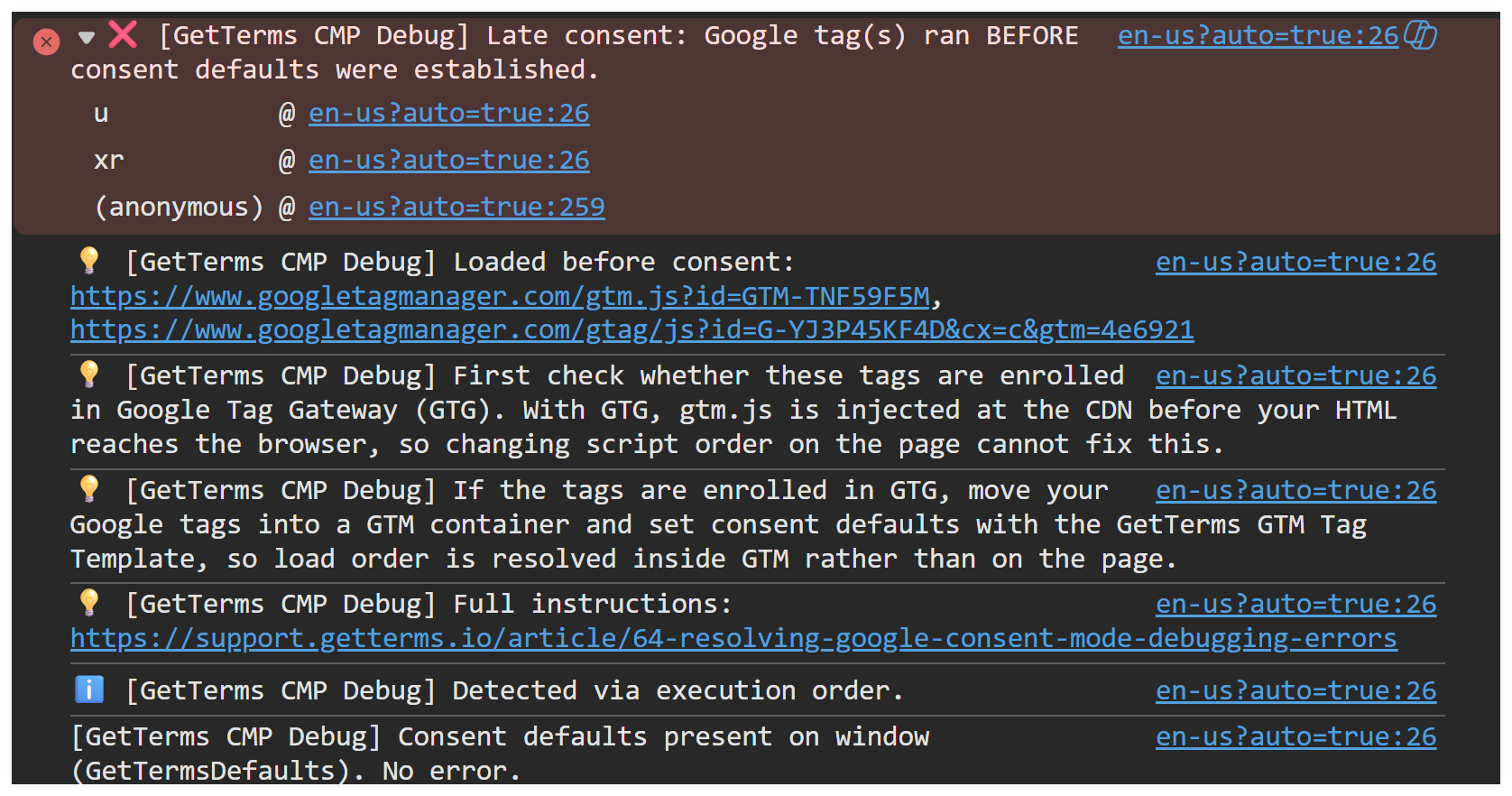
It means one or more Google tags fired before our banner could send the Consent Mode Default command, so they ran without knowing the visitor's consent state.
Note: Check a page as a visitor would see it rather than while logged into your CMS, since admin bars and preview modes can load scripts in a different order.
Before you assume the gateway is at fault, rule out the ordinary cause. The most common reason for this message is a GetTerms banner script installed after the opening GTM script, which the first fix below covers.
What does late consent do to your analytics and ad performance?
Tags that fire without a consent state are treated as denied, so they run without setting cookies or collecting identifiers. Sessions arrive unattributed or not at all, and the usual symptom is analytics data that flat lines rather than disappearing outright.
The knock-on effect sits in your advertising. Conversion measurement, bidding, and campaign optimization all draw on the data those tags were meant to send, so conversions go unrecorded and audiences stop filling. Behavioral and conversion modeling is designed to recover some of what consent denial costs you, but it depends on Consent Mode being implemented correctly, so it doesn't compensate for defaults that were never set.
Nothing on the page looks broken while this is happening, which is why late consent tends to go unnoticed until someone checks the numbers.
How to fix late consent
Move your Google tags into a Google Tag Manager container, deploy that container through Google Tag Gateway rather than the individual tags, and set your Consent Mode defaults using the GetTerms CMP tag template on the Consent Initialization - All Pages trigger.
This works because it takes the problem off your page. Instead of depending on which script the browser happens to load first, the defaults are set inside GTM, and GTM guarantees that Consent Initialization runs before any other tag in the container. Tag Gateway can still deliver the container as early as it likes, and your defaults will still be first.
A GTM-based setup relies on Consent Mode rather than script blocking, which is why we don't recommend it as a general installation method. On a site running Tag Gateway through a CDN it's the option that reliably puts your defaults first, and it's only suitable when all of your cookie-setting scripts are managed in GTM.
Our guides cover both parts of the change:
- How to set up Google Consent Mode with GetTerms
- How to update to the latest Consent Mode tag template
If you would rather not move your tags into a container, set up Google Tag Gateway manually instead of through the one-click CDN option. A manual setup leaves you in control of where the tag is imported, so you can place it after your consent defaults.
What Google recommends for Tag Gateway sites
For tags served through Tag Gateway, Google recommends advanced consent mode, sometimes written as U+C. Google tags are allowed to load before consent and send cookieless pings while consent is denied, rather than being blocked outright. Because it doesn't depend on load order at all, Google considers it the most reliable mechanism for Tag Gateway sites, and it works with manual Tag Gateway setups.
GetTerms supports both configurations. Your banner runs in basic consent mode when script blocking is switched on, and in advanced consent mode when it's switched off, which you can change in your widget's settings. Google's consent mode documentation sets out the difference between the two. Which one suits you depends on your own legal position, so it's worth deciding deliberately rather than by default.
How to confirm the fix worked
Save your changes and allow a few minutes for the banner to rebuild and cache. Load a public page in a fresh browser session and check the console again. The late consent message should be gone, and in Google Tag Assistant, Consent Initialization should appear ahead of your Google tag in the firing sequence.
How to get alerted to late consent issues
Rather than checking the console by hand, have GetTerms check for you. Turn on installation diagnostics within your GetTerms dashboard > Google Consent Mode > Validate your consent mode installation

When this setting is enabled, we'll email you if Consent Mode is configured incorrectly on your public-facing pages, including when your Google tags are running ahead of your consent defaults. The check runs once per day.
[flag: confirm the exact location and label of this setting in the dashboard, who receives the email, and whether more than one address can be added]
It's worth leaving on after you've fixed the problem. A theme update, a plugin change, or a new CDN setting can reintroduce the same load-order issue without any visible sign on the page, and a daily check finds it before a reporting month does.