
How to update to the latest consent mode tag template
In some cases, we need to make changes to our Google Tag Manager template to keep our Google consent mode integration working as expected. This requires you to update to the latest version of our tag template in your workspace. It should only take a minute.
Follow these steps to update to the latest version of our tag template:
- Open Google Tag Manager and open the container you'd like to update our template on.
- In your Google Tag Manager container, make sure you're in the 'Workspace' tab at the top left of the page.
- Look for the banner indicating that a template update is available.
-
Click View to open the available updates panel.
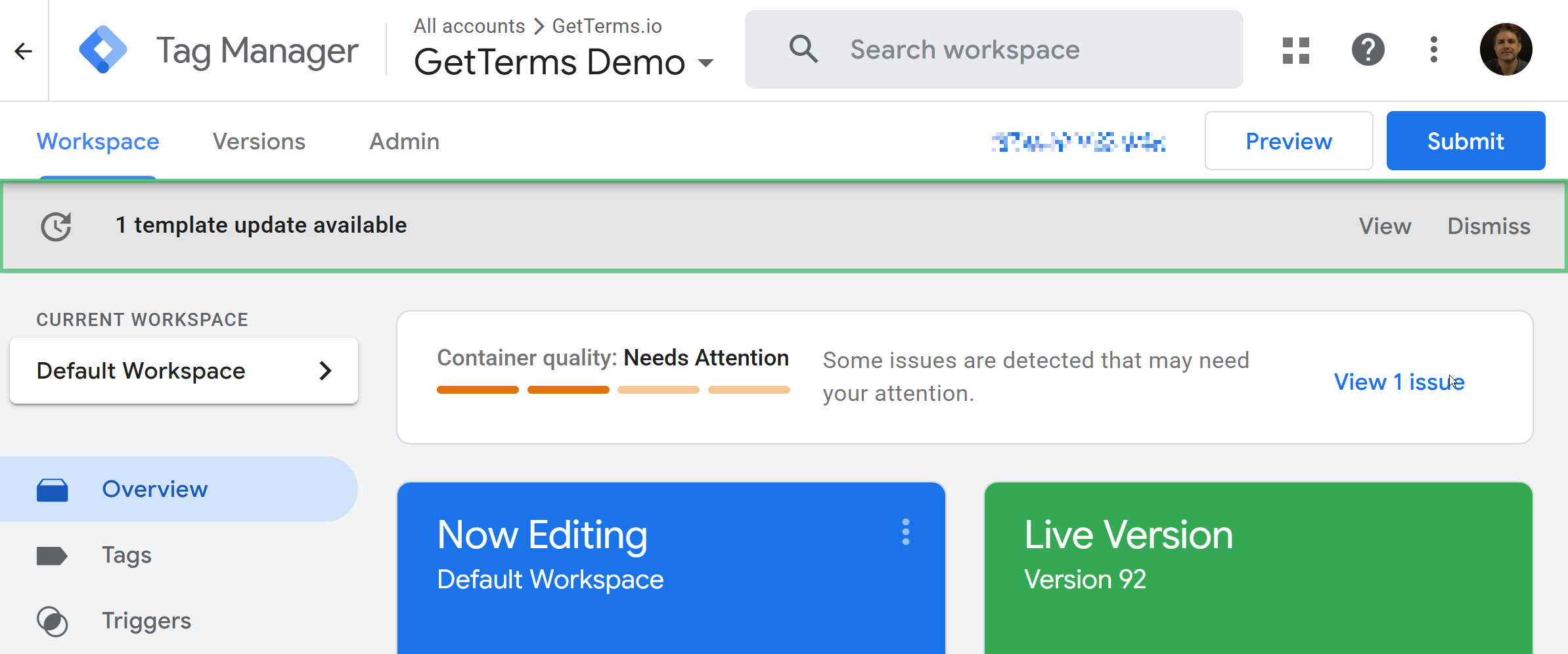
- In this panel you should see an update for the GetTerms CMP. Click anywhere in the row to open the changes window.
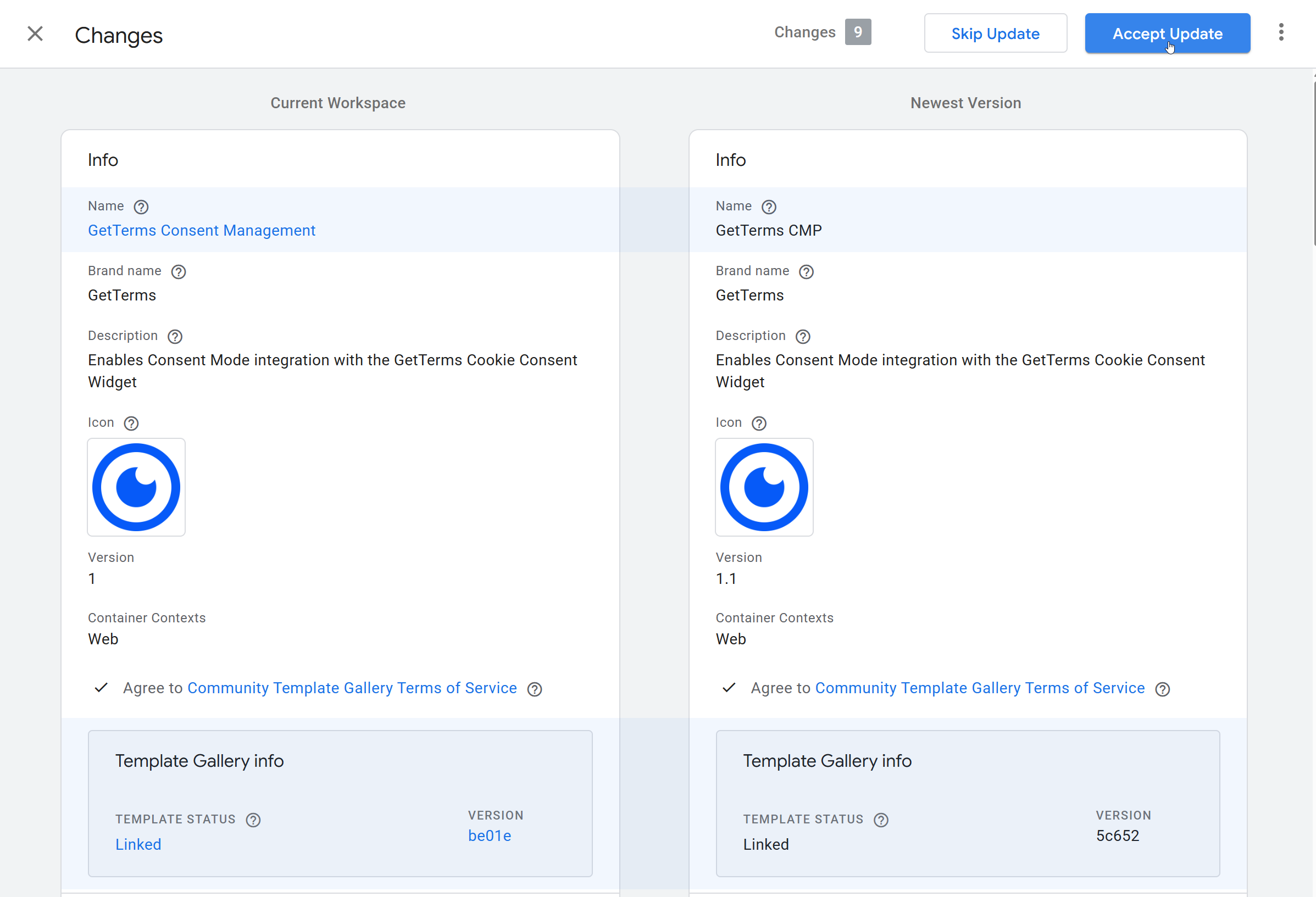
- Feel free to review the changes.
-
If you're happy, click 'Accept Update' in the top right of the window.
- Publish the changes by clicking the submit buton. Changes won't be live on your site until you complete this step.
The tag temlate should now be up to date.
Review your GetTerms tag settings
Depending on how you previously set up our tag, you may need to review the settings for the tag.
-
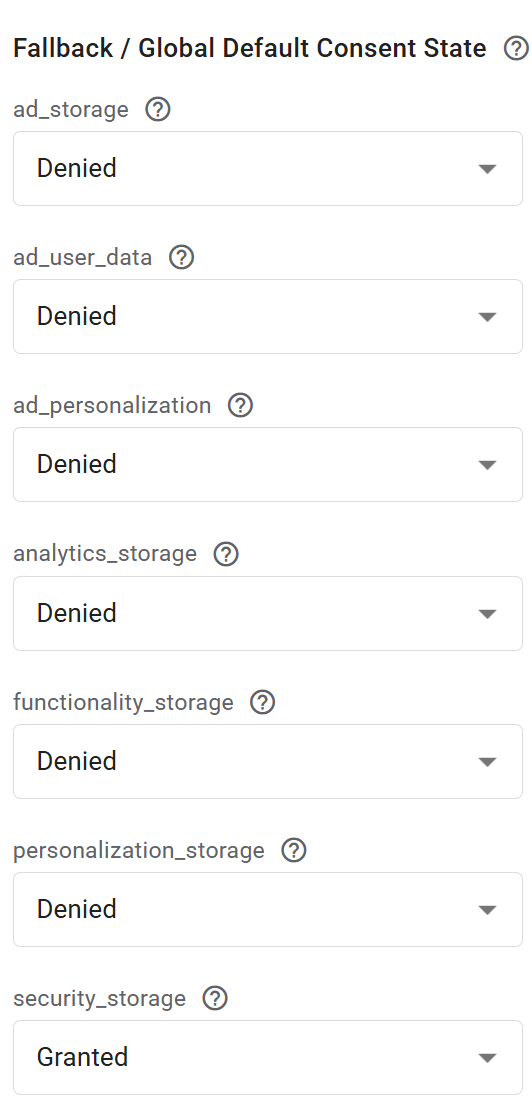
Make sure the 'Fallback / Global Default Consent State' is set to the default settings (Only security storage should be Granted).
-
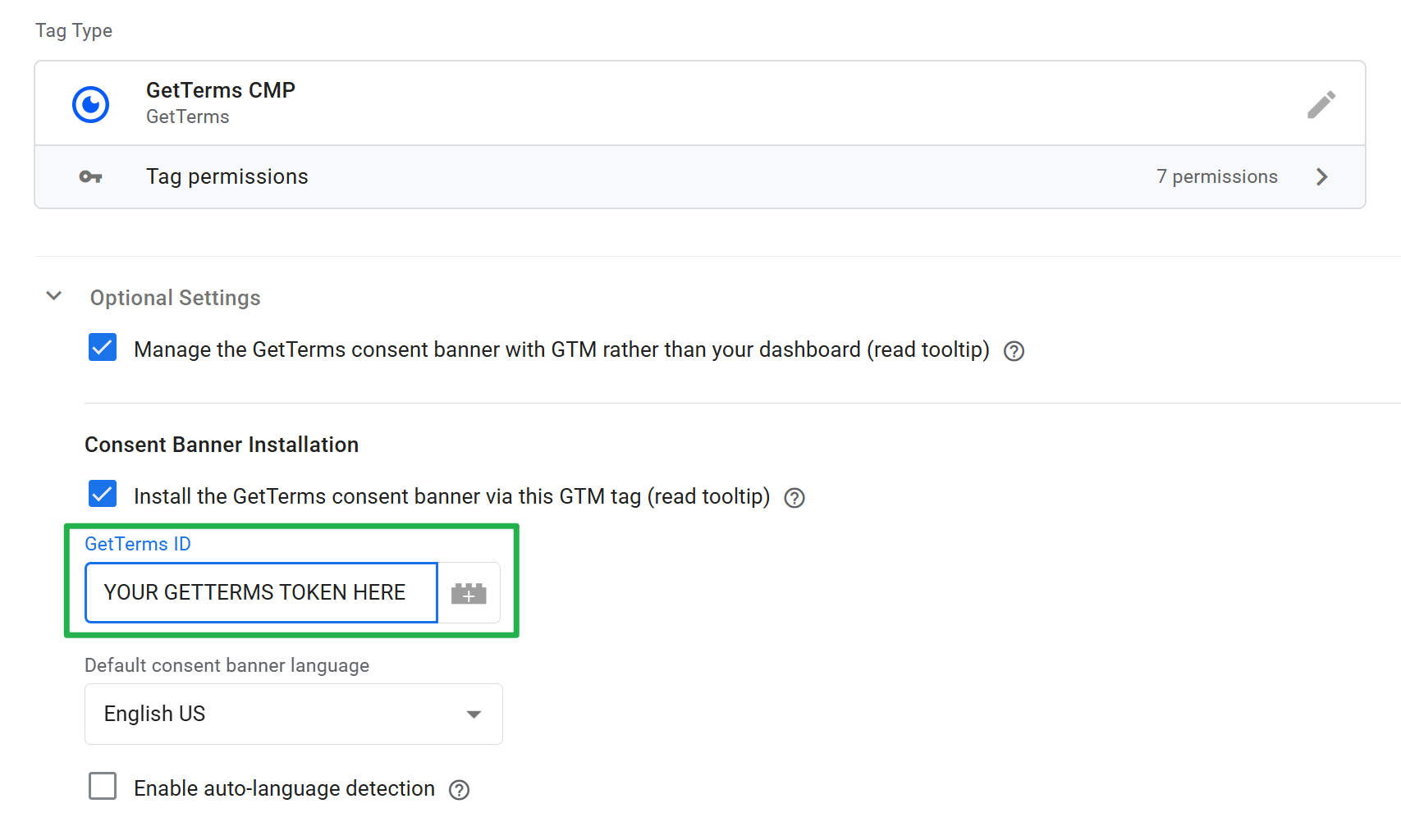
If you're installing your banner via the Tag Manager Template (rather than with a code embed) - you may need to re-insert your GetTerms ID / token into the tag to reinstall your banner.
-
Publish the changes by clicking the submit buton. Changes won't be live on your site until you complete this step.
That's everything :)
If you have any questions about any of the above, please reach out to us via our support center!