
Resolving Google consent mode debugging errors
In this guide, we'll explain each of the common debugging errors that you may run into if you've installed the GetTerms cookie banner incorrectly.
Debugging errors?
If you're reading this guide, we assume that you've already set up Google Consent Mode, and enabled console debugging. If you haven't you'll find it on the Google Consent Mode page found in the side menu of the GetTerms dashboard.

When debugging is enabled, you'll receive detailed information about your consent banner's processes, such as:
- The content language your banner is displaying in.
- The region-specific configuration your banner is using.
- The Google Consent Mode Signals it is sending to your Google Tag.

Late consent: Google tag(s) ran BEFORE consent defaults were established.
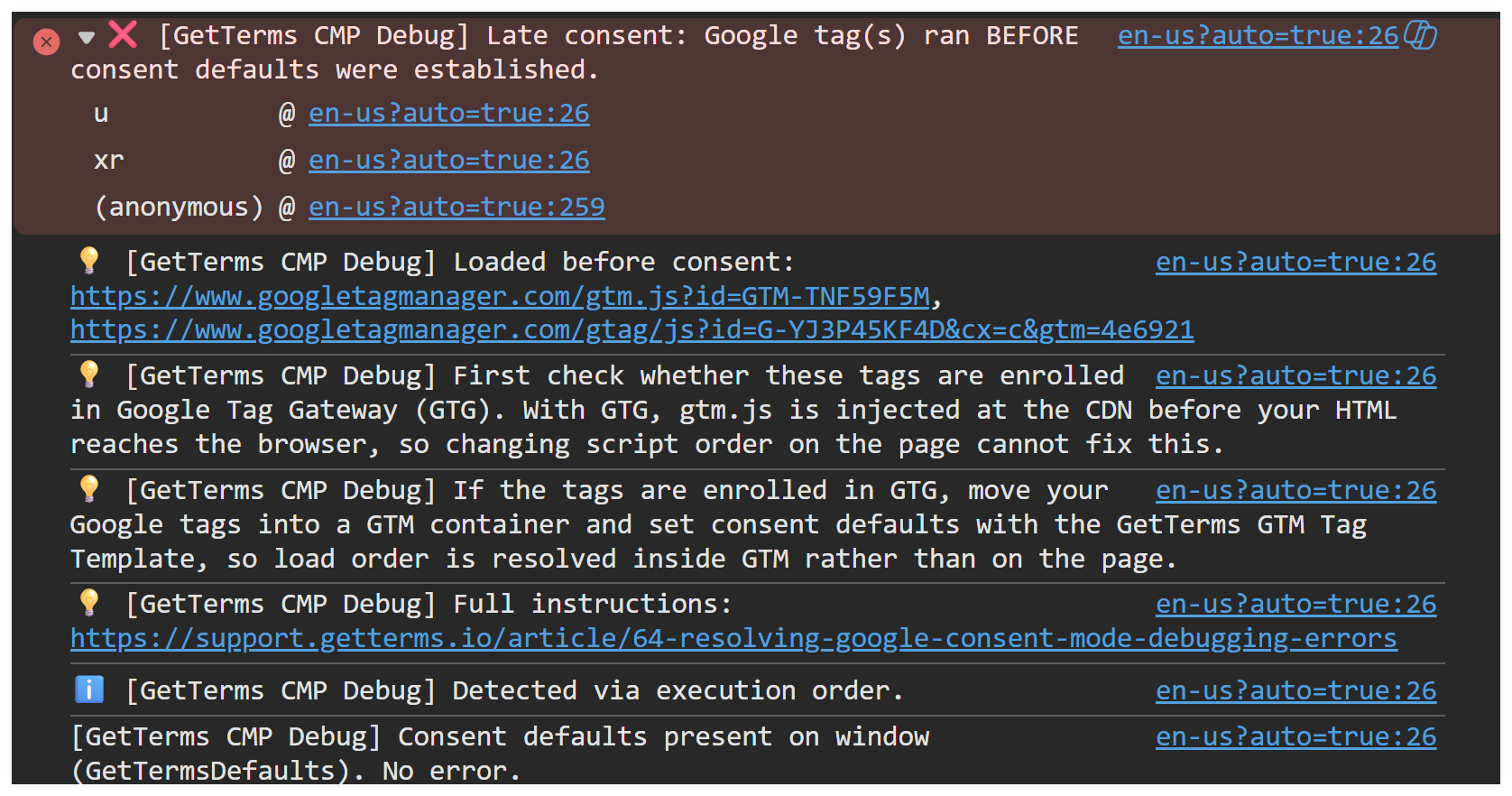
If your console output says Late consent: Google tag(s) ran BEFORE consent defaults were established, it means your Google tag fired before our banner could send the Consent Mode Default command, which sets the default consent state for each region. Opt-in = denied by default. Opt-out = granted by default.
If this happens, tags will run without knowing the visitor's consent state, which Google platforms will treat as "denied" consent, and you will therefore see your analytics data flat line.
The most common reason this occurs is you've installed your GetTerms cookie banner script AFTER your opening GTM script. Your cookie banner script must be placed before all other scripts in your <head> .
Before you change anything on your site
If your Google Tag uses Google Tag Gateway, moving scripts around may not resolve this issue.
Please follow our guide on using Google Tag Gateway with GetTerms.
If you're not sure if you've enrolled for Google Tag Gateway, here's how you can find out!
Find the best way to set up the Google tag gateway based on your existing infrastructure.
If you're certain your tags are not enrolled in Google Tag Gateway
- Navigate to wherever you installed your cookie banner and Google Tags.
- Place your Google Tag or GTM installation tag AFTER your GetTerms cookie banner script.
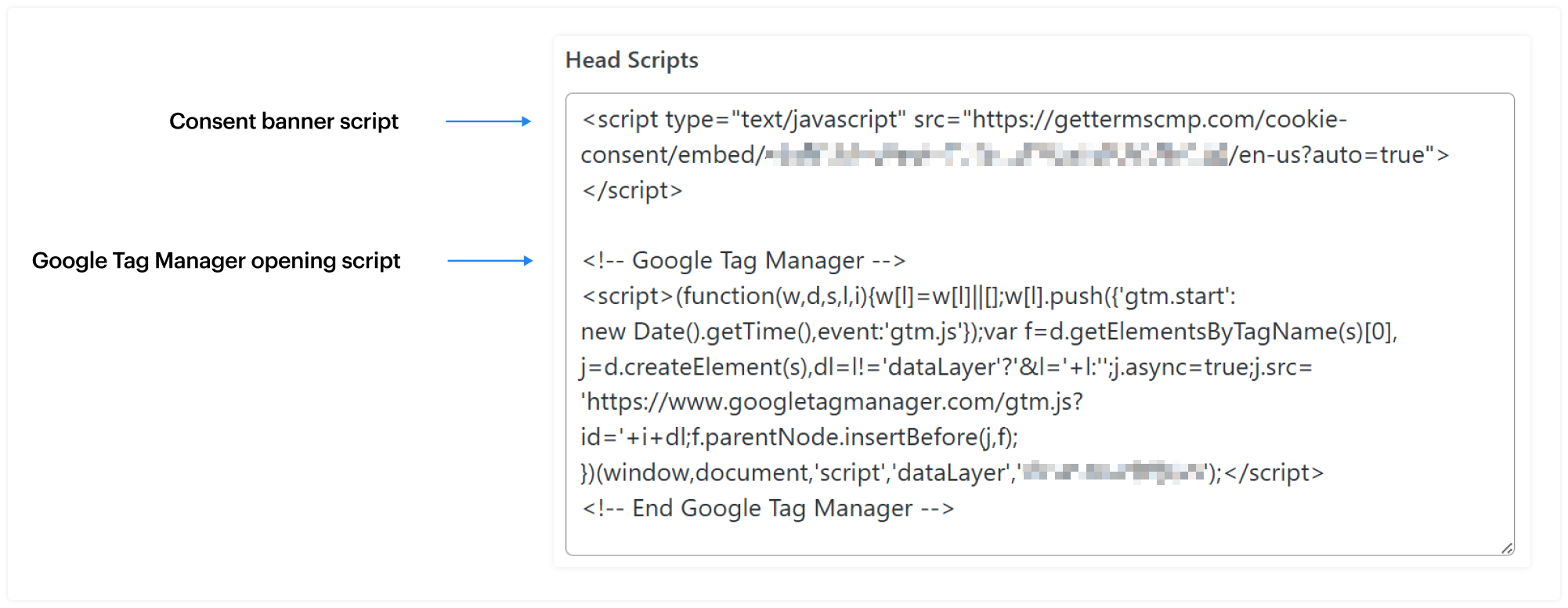
If your tags are already in the correct order
- In Google Tag Manager, go to the tags tab.
- Make sure that the GetTerms CMP tag is firing on the 'Consent Initialization - All Pages' trigger, and your Google Tag is firing on the 'Initialization - All Pages' trigger.

MISSING_CONSENT_DEFAULT
What this error means: Consent Mode default command not detected
This error indicates that our debugger could not find the Consent Mode default command, which sets the initial consent state before the user interacts with the consent banner.
Fix: Review consent mode configuration
From the GetTerms dashboard, navigate to the configuration page of your consent banner and enable Consent Mode. In GTM, make sure you're firing our CMP tag template on "consent initialization - all pages".
See: Part 5 of our consent mode setup guide
MISSING_GTM_START
What this error means: Google Tag Manager start not detected
This warning indicates that Google Tag Manager is not running on your site. GetTerms sets your Consent Mode default state through our Google Tag Manager tag template, firing on the Consent Initialization - All Pages trigger. Without Google Tag Manager, nothing is setting that default on your behalf and you would need to add the default command to your page yourself.
If your site does not use Google tags at all, this warning does not apply and can be ignored — which is why it is a warning rather than an error.
Fix: Verify GTM container code is present on your site.
Verify that the GTM container code is present on your site. If you’ve installed your Google tags directly into your site’s <head>, you will need to remove them and install them using Google Tag Manager to ensure they do not fire before consent settings are updated.
If you haven’t installed Google Tag Manager yet, here's a guide you can follow.
If you are certain Google Tag Manager is installed, disable ad blockers and use a browser other than Brave, as these may block GTM.
GTM_BEFORE_CONSENT
First, check whether your tags use Google Tag Gateway - see the section above. If they do, moving scripts will not resolve this.
What this error means: GTM is loading before Consent mode defaults are set.
This error indicates that Google Tag Manager is loading before GetTerms can set the default consent state of each user. This may lead to tags firing before consent.
Fix: Move Consent Mode snippet above GTM code in <head>
Move the Consent Mode snippet above the GTM code in <head> if you are manually embedding our banner on your site. The GetTerms cookie banner script should be above the opening tag of your Google Tag Manager installation script.
TAGS_BEFORE_CONSENT
First, check whether your tags use Google Tag Gateway - see the section above. If they do, moving scripts will not resolve this.
What this error means: Tags are firing before Consent Mode
Some Google tags fired without consent or before consent mode was initialized.
Fix: Configure tags for consent mode
In Google Tag Manager, make sure your tags are configured with the necessary consent checks.
See: parts 6-8 of our consent mode setup guide

WIDGET_NOT_FOUND
What this error means: The GetTerms cookie banner script was not detected
This error indicates that you have not correctly installed our cookie banner on your site.
Fix: Review cookie banner installation
Make sure you've installed our banner following the instructions on the consent banner installation page (found in your GetTerms dashboard).
If you are certain you installed the banner correctly, check your browser console for errors and ensure CDN access is not blocked by the network. Some WordPress firewall or security plugins (such as Wordfence, iThemes Security, etc.), as well as hosting providers and services like Cloudflare, may block external requests from our server.
Please whitelist our server IP address: 143.198.196.225
WIDGET_BEFORE_GTM_OR_CONSENT
What this error means: The CMP template loaded before GTM or Consent Mode
This error indicates that our CMP's Google tag Manager community tag template loaded before GTM initialized and Consent Mode defaults were set. The correct order is: Consent Mode defaults set -> GTM initializes -> CMP template loads.
Fix: Review CMP template trigger in GTM
Review CMP template trigger in GTM. Make sure the tag template is set to fire on "consent initialization - all pages" and that you are setting the default consent state via our banner by enabling Google Consent Mode in the cookie banner configuration page.
